class: center, middle, inverse, title-slide .title[ # BANL 6100: Business Analytics ] .subtitle[ ## R Notebooks ] .author[ ### Mehmet Balcilar </br> <a href="mailto:mbalcilar@newhaven.edu" class="email">mbalcilar@newhaven.edu</a> ] .institute[ ### Univeristy of New Haven ] .date[ ### 2023-08-28 (updated: 2023-09-25) ] --- class: center, middle, sydney-blue # R Notebooks --- ## Getting Work Done .pull-left[ ### Basics of R Notebooks 1. See the [section in R Markdown book](https://bookdown.org/yihui/rmarkdown/notebook.html) 2. See the [description at the RStudio page](https://rmarkdown.rstudio.com/lesson-10.html) 3. [Webinar by Jonathan McPherson](https://resources.rstudio.com/resources/webinars/introducing-notebooks/) ] .pull-right[ ### Notebook Recap 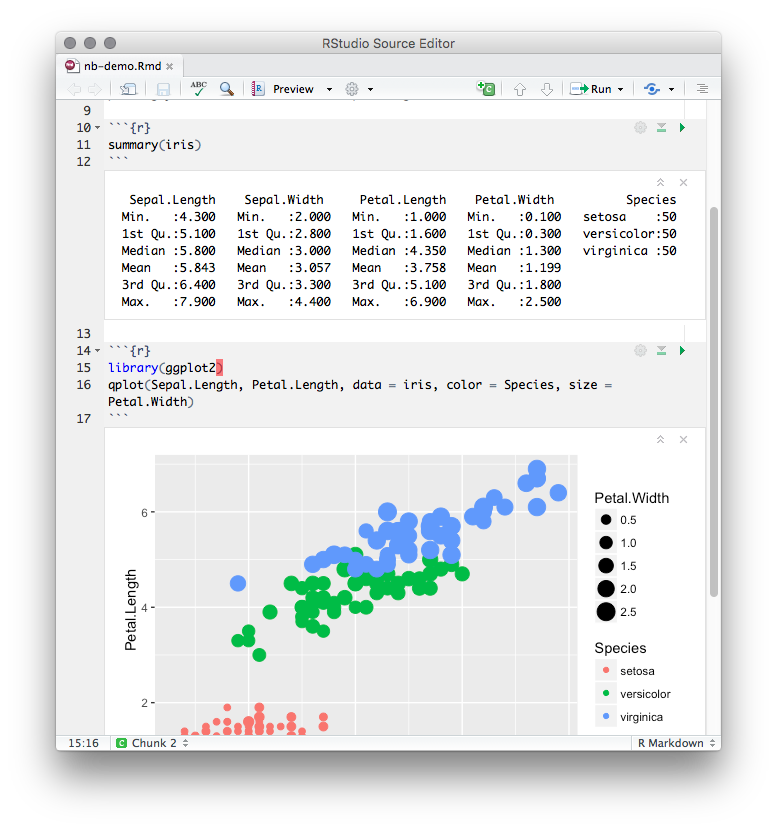 ] --- ## Notebook Recap - Notebooks are R Markdown documents + new interaction model - Code chunks are executed individually - Code output appears beneath the chunk and is saved with the document - Combines iterative approach with reproducible result If you've never used them before, watch the [R Notebook Webinar](https://www.rstudio.com/resources/webinars/introducing-notebooks-with-r-markdown/)  --- ## Navigation: Outline  --- ## Navigation: Jump To 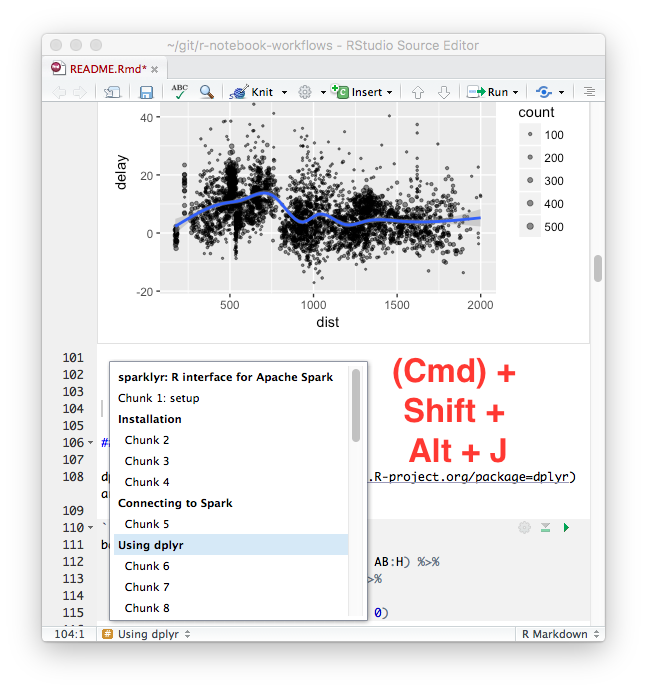 --- ## Navigation: By Chunk 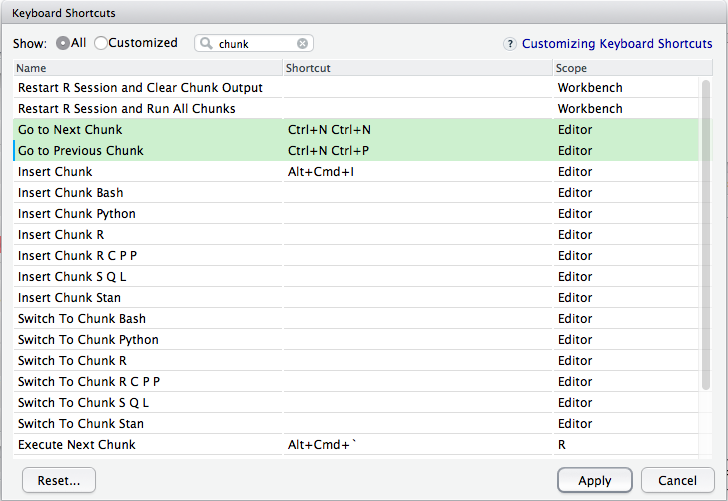 --- ## Navigation: Running 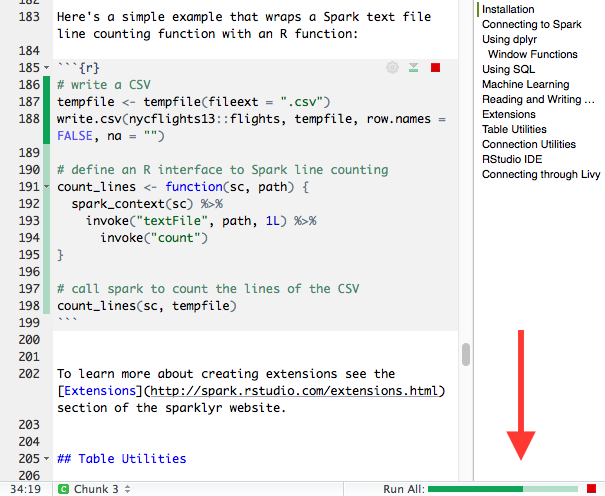 --- ## Output Management 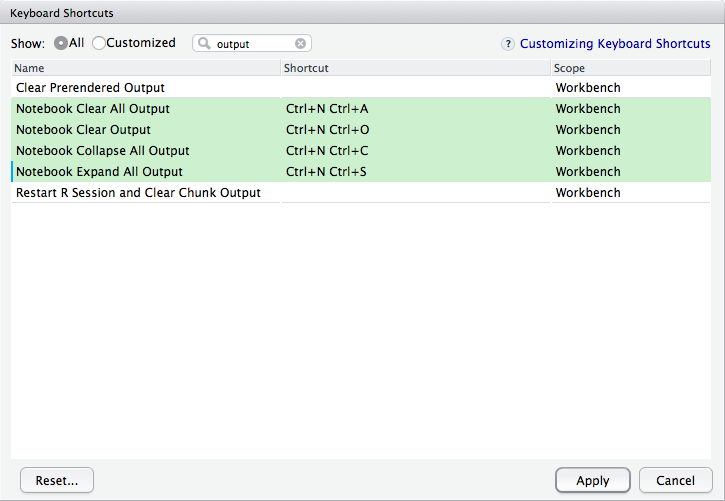 --- ## Reproducibility - Notebooks can be **less reproducible** than traditional R Markdown documents. - Chunks can be run in **any order**. - Chunks can access the **global environment**. ## Simulating a Knit 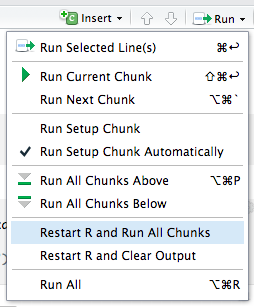 --- ## Consistency 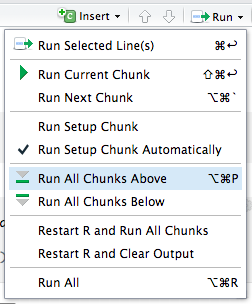 --- class: center, middle, sydney-blue # How R Notebooks *Really* Work --- ## Input and Output <div class="grViz html-widget html-fill-item-overflow-hidden html-fill-item" id="htmlwidget-f48003c868b2e76ffd7d" style="width:432px;height:504px;"></div> <script type="application/json" data-for="htmlwidget-f48003c868b2e76ffd7d">{"x":{"diagram":"\ndigraph notebookio {\n node [shape=\"box\", fontname=\"Helvetica\", fillcolor=lightgrey];\n doc [label=\"R Markdown (.Rmd)\"];\n cache [label=\"Local Output Cache\"];\n edoc [label=\"R Markdown\"];\n ecache [label=\"Embedded Output Cache\"];\n rs [label=\"RStudio\"];\n save [label=\"Save\", shape=\"ellipse\"]\n execute [label=\"Execute Chunks\", shape=\"ellipse\"]\n subgraph cluster0 {\n edoc;\n ecache;\n label=\"Notebook HTML (.nb.html)\";\n labelloc=b;\n }\n doc -> save;\n doc -> execute;\n cache -> save;\n save -> edoc;\n save -> ecache;\n execute -> cache;\n doc -> rs;\n cache -> rs;\n}","config":{"engine":"dot","options":null}},"evals":[],"jsHooks":[]}</script> --- ## Input and Output 1. When you **execute** chunks in your notebook, the output is simultaneously displayed by RStudio and stored in a local cache in the `.Rproj.user` folder. 1. When you **save** your notebook, the output and your R Markdown document are combined into a single, self-contained `.nb.html` file. --- class: center, middle, sydney-blue # Publishing and Collaborating --- ## Publishing Two choices: 1. Publish the notebook file directly (HTML) 1. Render to a separate output format ## Publishing: Notebook HTML - Self-contained - Compatible with any hosting service - No viewer required - Hydrates to full notebook (more on this later) --- ## Publishing: Another Format --- title: "A Monte-Carlo Analysis of Monte Carlo" output: html_notebook: default pdf_document: fig_width: 9 fig_height: 5 --- --- ## Understanding Multiple Formats <div class="grViz html-widget html-fill-item-overflow-hidden html-fill-item" id="htmlwidget-6ca37fc8df4ac4e563ee" style="width:432px;height:504px;"></div> <script type="application/json" data-for="htmlwidget-6ca37fc8df4ac4e563ee">{"x":{"diagram":"\ndigraph notebookio {\n node [shape=\"box\", fontname=\"Helvetica\", fillcolor=lightgrey];\n doc [label=\"R Markdown (.Rmd)\"];\n cache [label=\"Local Output Cache\"];\n nb [label=\"Compiled Notebook (.nb.html)\"];\n pdf [label=\"PDF Publication\"]\n save [label=\"Save\", shape=\"ellipse\"]\n execute [label=\"Execute Chunks\", shape=\"ellipse\"]\n knit [label=\"Knit\", shape=\"ellipse\"]\n subgraph cluster1 {\n execute;\n cache;\n save;\n nb;\n label=\"Develop\";\n }\n subgraph cluster2 {\n knit;\n pdf;\n label=\"Present\";\n }\n doc -> execute;\n doc -> knit;\n knit -> pdf;\n cache -> save;\n save -> nb;\n execute -> cache;\n}","config":{"engine":"dot","options":null}},"evals":[],"jsHooks":[]}</script> --- ## Publishing: RStudio Connect - One-click publish inside your org - Fine-grained access control - Execute on the server - Schedule executions ## Collaborating: Plain Files To: analyst@contoso.com From: customer@northwind.com I need some help with this analysis. Could you take a look at what I have so far? Thanks, Charles [ Attachment: foo.nb.html ] --- ## Collaborating: Execution in Reverse <div class="grViz html-widget html-fill-item-overflow-hidden html-fill-item" id="htmlwidget-67528883ca73241f749c" style="width:432px;height:504px;"></div> <script type="application/json" data-for="htmlwidget-67528883ca73241f749c">{"x":{"diagram":"\ndigraph notebookio {\n compound = true;\n node [shape=\"box\", fontname=\"Helvetica\", fillcolor=lightgrey];\n doc [label=\"R Markdown (.Rmd)\"];\n cache [label=\"Local Output Cache\"];\n edoc [label=\"R Markdown\"];\n ecache [label=\"Embedded Output Cache\"];\n rs [label=\"RStudio\"];\n open [label=\"Open in RStudio\", shape=\"ellipse\"]\n view [label=\"View in Browser\", shape=\"ellipse\"]\n subgraph cluster0 {\n edoc;\n ecache;\n label=\"Notebook HTML (.nb.html)\";\n }\n edoc -> open [ltail=cluster0];\n ecache -> view [ltail=cluster0];\n doc -> rs;\n cache -> rs;\n open -> doc;\n open -> cache;\n}","config":{"engine":"dot","options":null}},"evals":[],"jsHooks":[]}</script> --- ## Collaborating: Opening Code in RStudio 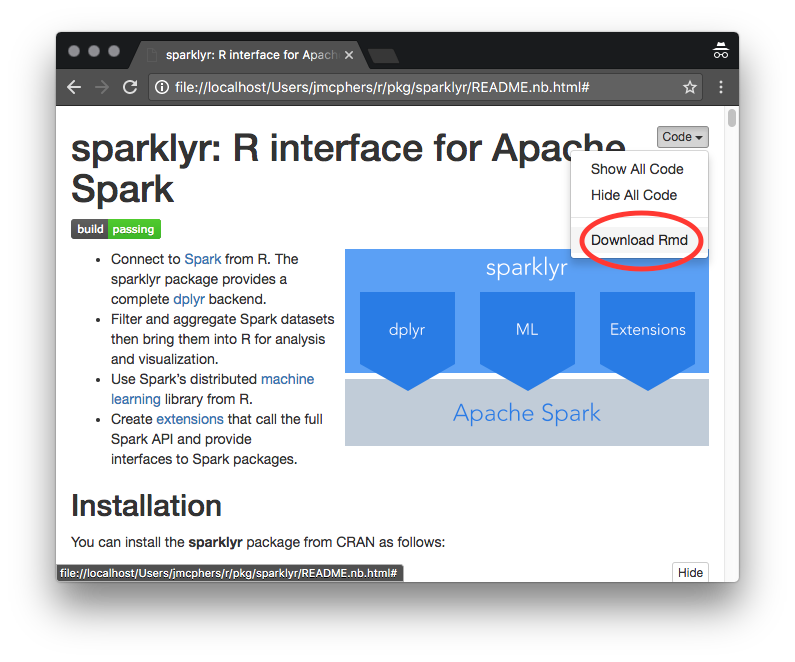 --- ## Collaborating: Opening Notebook in RStudio  --- ## Collaborating: Open Inside RStudio 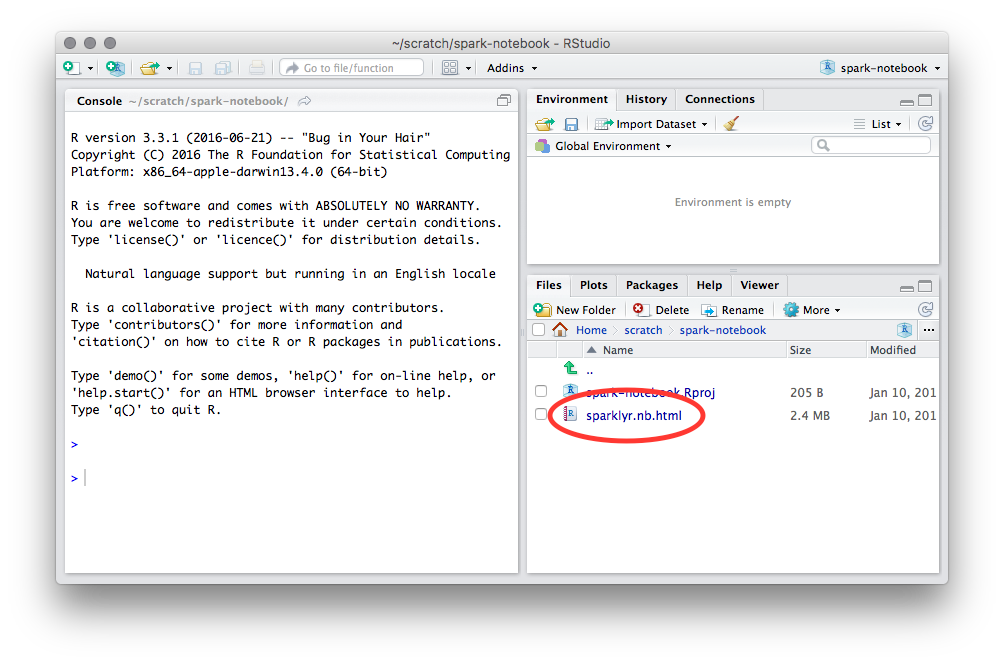 --- ## Collaborating: Open Notebook  --- ## Collaborating: Version Control #1 - Add `*.nb.html` to your `.gitignore` or similar - Check in only the `.Rmd` file - All diffs are plain text - Encourages reproducibility & independent verification of results ## Collaborating: Version Control #2 - Check in the `.nb.html` file and the `.Rmd` file - Diffs are noisier - RStudio loads outputs from `.nb.html` if newer - Outputs and inputs are versioned together - No need to re-execute lengthy or fragile computations --- ## Versioned Output When a notebook is opened: - The local cache modified time is compared to the `.nb.html` - If `.nb.html` is older, it is ignored - If `.nb.html` is newer, it replaces the local cache - No merging or conflict management is performed! --- ## The End